Menu

"Right to THINK" a Human Rights

No one have right to force his/her own feeling and decision on others. every people have their own logic and aspect of thinking(except minors). Weather that person is illiterate or educated, the power of thinking, thought and decision making human received from the nature and even animals and birds can think and used to take decision, what is good and bad for them and their life.
You can't force someone to follow your decision, better you let that person understand and give some facts and valid reason to he/she could come to your decision of next to your decision.

Right to think and expression is a human rights and also the fundamental rights given by the constitution of a state. Every person shall have the equal rights to take his or her own decisions but make sure that, those decision should not harm others and violent the rights of others, if it does so then it will become a crime.

How to search the content only from the specified directory using AEM query builder?

Using the AEM query builder, will search a content which is available in specified directory only. This query will not search the content in sub directories, or not even child of the child directories. 

Open AEM Query Builder Debuggerhttp://localhost:4502/libs/cq/search/content/querydebug.html. Add the following options to perform the search.
path=/content/dam/we-retail/en/features

path.flat=true
type=dam:Asset
fulltext=cart

Filters definition:

  • path=? // On which path this query will perform the search operation.
  • path.flat=true // will look the content only in the specified directory.
  • fulltext=? //name or keyword which you are searching.

find-direct-children-in-aem-using-query-builder
find direct children using query builder

Query tree + URLs

ROOT=group: [
{fulltext=fulltext: fulltext=cart}
{path=path: path=/content/dam/we-retail/en/features, flat=true}
{type=type: type=dam:Asset}
]

XPath query to find the direct child in a directory

/jcr:root/content/dam/we-retail/en/features/element(*, dam:Asset)
[
(jcr:contains(., 'cart'))

]

JSON response 

You can get the JSON response of this query using this URL: (Note: update the domain(localhost:4502) to browse the url for your AEM instance)


Response:
{
  "success": true,
  "results": 1,
  "total": 1,
  "more": false,
  "offset": 0,
  "hits": [
    {
      "path": "/content/dam/we-retail/en/features/cart.png",
      "excerpt": "/content/dam/we-retail/en/features/cart.png",
      "name": "cart.png",
      "title": "cart.png",
      "lastModified": "2016-06-06 16:26:05"
    }
  ]
}

Configure and start remote debugger in Eclipse

Set the remote debugger configuration in Eclipse, to debug the running application code and identify the code issues.

Step 1: Open the Debug perspective from tool bar. if you don't see debug perspective option in your toolbar, then open the perspective from this path in Eclipse. 
Windows >> Perspective >> Open perspective >> Others >> Debug  
  1. Click on the perspective drop-down option very next to bug symbol.
  2. Select the option Debug configuration

Debug Configuration in Eclipse
Step 2: Debug Configuration will open a new window(below is the screenshot).
  1. Click on Remote Java Application option from left side rail.
  2. Click on the New Launch configuration(new configuration) button. As shown in the screenshot below.

Remote Java Application setup

Step 3: Once you click on new configuration button, a configuration setup option will appear right side on same window. Switch to connect tab, if you are not on the connect tab by default.
  1. In Name section, please provide a valid name.
  2. In Connection Properties section specify the host and port on which your application is running. 
    e.g. 
    Host: localhost
    Port: 30303 (default AEM debug mode port)
  3. Project: Select the core folder of your project.
  4. Connection type: Keep it as Standard.

Debugger remote connection setup

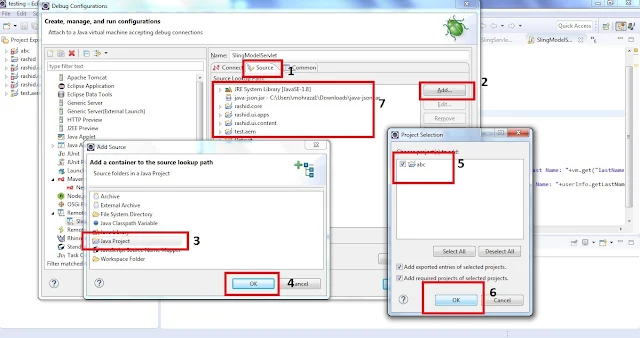
Step 4: Now switch to source tab, next to connect and configure your Java project. Below is the screenshot.

  1. Switch to source tab
  2. Click on Add option
  3. Select Java Project option
  4. Hit Ok button
  5. Select your project 
  6. Hit Ok button
  7. After successful selection your project get added in the source section.  

Debug project setup in Eclipse

You have successfully setup the debugger with your remote application. Now run or tune your application in debug mode and start the debugger in Eclipse from debug perspective to listen the request from your application server to Eclipse.